DirectiveProcessor for VSX

Tags: , , , ,
No Comments »

I created two DirectiveProcessor for Visual Studio to use in the T4 system. I added the classes to JaDAL hoping someone can use them in her project or use the code as an example when creating new DirectiveProcessors.

Let’s start with a short introduction to DirectiveProcessors. DirectiveProcessors are used in .tt-files to provide data to the template. The DirectiveProcessor can take parameters from the declaration in the .tt-file and adds some code to the compiled template. This code (often properties) can be used from within the template. For example the DSL Tools are generating one DirectiveProcessor for each DSL model. In a template form the DSL Tools you will see a line like the following:

<#@ Language1 processor=Language1DirectiveProcessor
requires=fileName=’Sample.mydsl1′#>

This line uses the Language1DirectiveProcessor and provides it with one parameter (fileName). The DirectiveProcessor adds code to the template to open the given file and creates (in this case) a ExampleModel-property to use in the template code.

I created two DirectiveProcessors to use the data of simple Xml-files and Visual Studio Project files in the templates. The code of the two DirectiveProcessors is very straight forward and maybe one could advance it (e.g. make it compatible with templates written in Visual Basic).

Using the XmlFileDirectiveProcessor

Add a line like the following to your .tt-file:

<#@ XmlFile processor=XmlFileDirectiveProcessorFileName=example.xml#>

Inside this template you can access the (full qualified) filename via the this.XmlFileName-Property and the Content of this file (as a XDocument) via the this.XmlFile-Property.

Using the VsProjectFileDirectiveProcessor

Add this line to your template:

<#@ ProjectFile processor=VsProjectFileDirectiveProcessorFileName=x.csproj#>

A property named this.ProjectFile will be added to the template. This property provides you with an instance of the VsProjectFile-class containing the project file contents. This class contains only very little functionality (feel free to add some more and submit it back to me!). Just take a look at the source code of this class. The method GetAllFiles() returns a string array of all files found in the project (supporting C++ and C# project files - .vcproj and .csproj).

Setup

An entry in the registry is needed to allow the T4 system to find custom DirectiveProcessors. Just add the following entries to your registry and don’t forget to point to the right location of the JaDAL.dll.

[HKEY_CURRENT_USER\Software\Microsoft\VisualStudio\9.0Exp\
Configuration\TextTemplating\DirectiveProcessors\VsProjectFileDirectiveProcessor]
“Class”=”BenjaminSchroeter.Dsl.DirectiveProcessors.VsProjectFileDirectiveProcessor”
“CodeBase”=”D:\\JaDAL\\bin\\Debug\\JaDAL.dll”

[HKEY_CURRENT_USER\Software\Microsoft\VisualStudio\9.0Exp\
Configuration\TextTemplating\DirectiveProcessors\XmlFileDirectiveProcessor]
“Class”=”BenjaminSchroeter.Dsl.DirectiveProcessors.XmlFileDirectiveProcessor”
“CodeBase”=”D:\\JaDAL\\bin\\Debug\\JaDAL.dll”

These registry keys are for the Experimental Hive of Visual Studio. To register the DirectiveProcessors for the normal Visual Studio instance the registry key starts with HKEY_LOCAL_MACHINE\Software\Microsoft\VisualStudio\9.0
\TextTemplating\DirectiveProcessors\

Getting rid of the DSL model explorer

Tags: , , ,
No Comments »

Every DSL you create with DSL Tools has a model explorer. This model explorer is a tool window in Visual Studio displaying the elements of your model in a hierarchical way. This is often a nice feature but sometimes a hierarchical view of your data is not appropriate. So I came to the question: How to remove the explorer from the generated code?

I could not find any option in the DSL design to remove the model explorer, but if you look at some of the .tt files you will find somewhere a query for this.Dsl.Explorer != null. For example in the package.tt file that generates the package.cs which is responsible for registering the tool window for the model explorer:

<#
    if(this.Dsl.Explorer != null)
    {
#>
    [VSShell::ProvideToolWindow(         typeof(<#= dslName #>ExplorerToolWindow),          MultiInstances = false,          Style = VSShell::VsDockStyle.Tabbed,          Orientation = VSShell::ToolWindowOrientation.Right,          Window = "{3AE79031-E1BC-11D0-8F78-00A0C9110057}")]
    [VSShell::ProvideToolWindowVisibility(         typeof(<#= dslName #>ExplorerToolWindow),          Constants.<#= dslName #>EditorFactoryId)]
<#
    }
#>

Even if I did not find any option to set the Dsl.Explorer property of the model to null (you did not see the Explorer property anywhere in the DSL diagram) it seems that the developers of the DSL Tools had this use case in mind.

To remove the Dsl.Explorer from your DSL model open the .dsl file with a text editor and go to the end. There you will find some XML tags like the following:

<Explorer ExplorerGuid="6c276297-6acd-4e9a-8740-b61ba834004b"  Title="HardwareDescription Explorer">
    <ExplorerBehaviorMoniker      Name="HardwareDescription/HardwareDescriptionExplorer" />
</Explorer>

Just delete these three lines and generate your code once again. Maybe you should reset your Experimental Hive, too.

I tested a DSL with a removed Model Explorer without any problems. It seems the developers of the DSL Tools did a very good job on the code generation templates . The generated ModelExplorer.cs file contains only a single line:

// This source file is empty because    this DSL does not define a model explorer.

That should be a good proof that a DSL can run without the model explorer even if it might be not supported by the DSL Tools. :-)

Workaround for Known Issue with TypeDescriptors in DSL Tools for Visual Studio

Tags: , , ,
No Comments »

There is a known issue in the current version of the DSL Tools while dealing with custom TypeConverters or custom TypeDescriptors:

1.10 TypeConverters and TypeDescriptors are not picked up during the build process or during toolbox initialization.
When adding a custom TypeConverter or TypeDescriptor and then building the DSL, the TypeConvertor or TypeDescriptor is not picked up. The workaround is to rebuild the solution with a clean build.

[see Known Issues for Microsoft Visual Studio 2008 SDK 1.0]

Some time ago I posted a workaround for this problem with the TypeConverter, but today a realized that this workaround does not work with the same issue for TypeDescriptors.

Imagine some class with the following attribute:

[TypeDescriptionProvider(typeof(MyClassTypeDescriptionProvider))]
public partial class MyClass : ModelElement
{}

The corresponding TypeDescriptor (provided by the MyClassTypeDescriptionProvider class) is loaded only the first time you build or rebuild your solution. Every time you start Visual Studio after that, this attribute seems to be ignored.

Fortunately there is another way to glue TypeDescriptors to your classes using a static method of the TypeDescriptor class at runtime:

TypeDescriptor.AddProvider(
   new MyClassTypeDescriptionProvider(), typeof(MyClass));

I think a good place for this code is the static constructor of the MyClass type:

partial class MyClass
{
    static MyClass()
    {
        TypeDescriptor.AddProvider(
            new MyClassTypeDescriptionProvider(),
            typeof(MyClass));
    }
}

Another interesting point is: Not only custom TypeDescriptors you write yourself are affected by this problem, also the TypeDescriptors that are generated by the DSL-Tools from your DslDefintion have to struggle with it:

In the DSL Explorer you can define custom TypeDescriptors for each Domain Class and each Shape. Even these TypeDescriptors will not be loaded after the first run. In other words: the definition of TypeDescriptors in the DSL Explorer is pretty useless as long as you do not add the three lines of code to each class. Of course this is something one can automate! :-) I stole some code from PropertiesGrid.tt and added a few lines to create the RegisterTypeDescriptor.tt. Just add this file to your Dsl Project in the GeneratedCode folder and all TypeDescriptors defined in the DSL Explorer will be loaded every time you start your project.

Where can I find the model filename in a text template (tt)?

Tags: , , , ,
No Comments »

As you know I was working with the DSL Tools in the past months. For some weeks I am writing the code generation for my project and I am struggling with new problems.

For some reason I want to know the filename of the model used in the tt-file. The default implementation provides you only with a reference to the model but with no chance to get its filename.

In your tt-file you will find something similar to

<#@ Language15 processor="Language15DirectiveProcessor"
     requires="fileName='Sample.mydsl1'" #>

This will use the Language15DirectiveProcessor to load the given file and provide your template with a global ExampleModel variable (of cause the name depends on your DSL and you can change it with the provides attribute in the tt-file).

To change the Language15DirectiveProcessor you can create a partial class in your DSL and add some code to it:

partial class Language15DirectiveProcessor
{
    protected override void GenerateTransformCode
     (string directiveName,
      StringBuilder codeBuffer,
      System.CodeDom.Compiler.CodeDomProvider languageProvider,
      IDictionary<string, string> requiresArguments,
      IDictionary<string, string> providesArguments)
      {
        base.GenerateTransformCode(directiveName,
                    codeBuffer, languageProvider,
                    requiresArguments, providesArguments);           

        codeBuffer.AppendFormat(
           "public string {1} = @\"{0}\";",
             requiresArguments["FileName"],
             providesArguments["FileName"]);
       codeBuffer.AppendLine();
    }

    protected override void InitializeProvidesDictionary
    (string directiveName,
      IDictionary<string, string> providesDictionary)
    {
        base.InitializeProvidesDictionary(directiveName,
                            providesDictionary);

        providesDictionary.Add("FileName","FileName");
    }
}

This adds a new global variable FileName to the tt and initializes it with the model file name.

Attention: You see the variable in this example is generated by writing a line of C# code to the codeBuffer. This may be a bad idea if you want to use this DirectiveProcessor for templates where the template language is set to VB. The better way is to create the code using the Emit and CodeDom API, but I was to lazy to do it that way.

If anybody ports this code to work with VB templates by using the CodeDom or plain VB code, please post a comment here.

Further reading: The process of creating your own DirectiveProcessor and everything you need to understand the code above can be found in the msdn: Creating Custom Text Template Directive Processors.

Visual feedback for black connectors on mouse over

Tags: , , ,
No Comments »

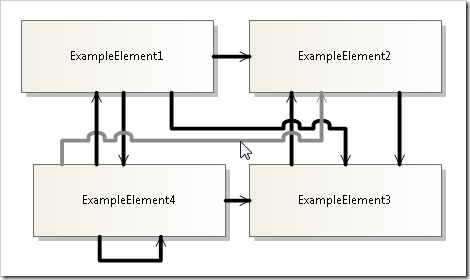
One of my DSLs uses many black connectors laying all over the screen. Every time I try to follow one connector I select it to change the border and to see a difference between all connectors. A colleague saw this design and asks me to implement a mouse over feedback for these connectors since all shapes have already such a visual feedback. The color of shapes changes a little bit if the mouse is over the shape. I had no idea how this should work for connectors…

First I take a look on the properties of the connector in the DSL designer and while searching I observed something: The DSL designer has this behavior on all connectors! I don’t have to write code for the MouseOver-event, but I have to figure out how to activate this behavior on my DSL editor.

For my surprise, the connectors on a newly created example language have a mouse over feedback, too. After playing around with some properties I was faced to a interesting fact: The mouse over feedback works pretty good for all connectors but black ones. I had no idea what’s going on.

Long story short: With Reflector I found one interesting method in the ShapeElement class: ModifyLuminosity(). The documentation is very clear:

"Calculates the luminosity of the highlight for the shape."

"The formula that creates luminosity. By default, the formula is: if luminosity is >= 160, then luminosity = luminosity * 0.9; otherwise, luminosity = luminosity + 40."

The luminosity of a black connector is 0 so the new luminosity will be 40. But for the color black you hardly see a difference between 0 and 40. But with this knowledge you can override the method in the connector class like this:

protected override int ModifyLuminosity
              (int currentLuminosity, DiagramClientView view)
{
  if(!view.HighlightedShapes.Contains(new DiagramItem(this)))
     return currentLuminosity;

 return 130;
}

The value 130 on a black connector works pretty good for me. Just try a few values und find a value you like.

HighlightedConnector

Custom restrictions for Domain Properties

Tags: , , , ,
1 Comment »

In To restrict dynamically the usage of Domain Properties in DSL Models I described a way to restrict the usage of certain domain properties by the user. You can define different modes for your editor and thus allow or prevent the usage of domain properties via attributes on your domain classes. The technique is described in the linked article and the code is released as part of JaDAL - Just another DSL-Tools Addon Library.

This is a pretty static way to control the domain properties. You have to define a few modes and decide at design time the visible and active properties for each mode. Sometimes you need a more dynamic way: So I introduced another attribute CustomRestrictedPropertyAttribute and an interface ISupportsUserRestrictions. If this attribute is present, the library will call the GetRestriction() method of this interface and your user code can decide whenever the domain property will be visible, hidden or read only.

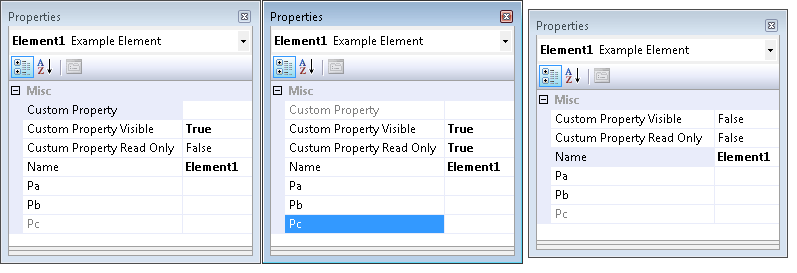
I built a small example: a domain class contains a few properties: CustomPropery, CustomPropertyVisible and CustomPropertyReadOnly. The two flags cause the first property to be visible, hidden or read only in the properties window.

[CustomRestrictedProperty("CustomProperty")]
partial class ExampleElement : ISupportsUserRestrictions
{
    public Restriction GetRestriction(string property)
    {
        if (property == "CustomProperty")
        {
            if (!this.CustomPropertyVisible)
                return Restriction.Hidden;

            if (this.CustumPropertyReadOnly)
                return Restriction.ReadOnly;

            return Restriction.Full;
        }

        return Restriction.Full;
    }
}

properties

This example can be downloaded as part of the JaDAL source code. Currently you have to catch the code directly from the Source Code tab at CodePlex since it isn’t part of the latest Release yet.

JaDAL - Just another DSL-Tools Addon Library

Tags: , , , , ,
No Comments »

Over the time I build some libraries that enhance the Microsoft DSL Tools framework and post them here. I wrote a number of articles and for many of them I provided a download with source code or examples.

However we all know: zip files are a bad version management system!

I decided to put all these code together and compose a single library with addons for the DSL Tools, name it “JaDAL - Just another DSL-Tools Addon Library” and publish it at CodePlex. I will continue to write articles here, but now you can always find the latest code at CodePlex.

If you are interested in my work with the DSL Tools, just take a look at JaDAL.

Connectors between compartment shape entries with DSL Tools – Version 2

Tags: , , , ,
6 Comments »

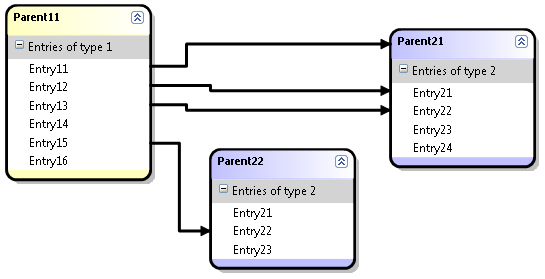
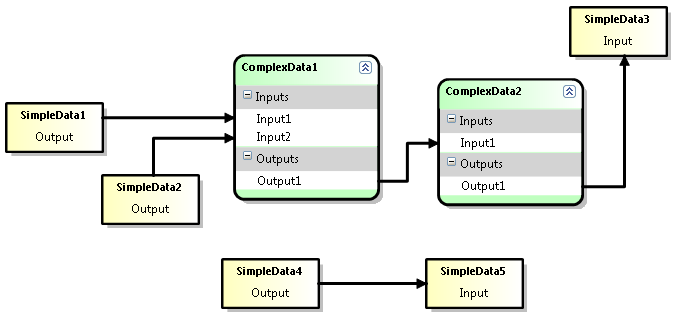
Few months ago I wrote a series of articles and released a library to create connectors between the entries of compartment shapes in Microsoft DSL Tools. In the meantime I found a setting that wasn’t working with my library and now it is time for version 2. I will release this new version as part of JaDAL – Just another DSL-Tools Addon Library on CodePlex.

If you don’t have any idea what I’m talking about please take a look at (at least) the first part of the series, but be careful and DO NOT read the second part! The second part contains obsolete information that will be corrected here. Part 3 and part 4 describe the inside of the library and they are still valid for the new version.
sample

Changes from version 1 to 2

In the original version you have to decide (using the xml file) for the target and source of the connection to be mapped to a compartment or a regular shape. I thought this wouldn’t be an issue since you must know the mapping of your classes. I believed it until I created my DSL with the use of inheritance and some base class that can be mapped to regular or compartment shapes. For this base class I couldn’t create a mapping that goes from a regular or a compartment shape to a regular or compartment shape.

I removed this constraint and in version 2 you needn’t care about it. The library can handle all these cases (even the trivial mapping from regular to regular shape). And even the best: it turned out that removing this constraint made the code much clearer and simpler (both the code of the library itself and the code you have to write). Before this change there were many different cases (first regular to compartment, then compartment to regular, then compartment to compartment and at the end regular to regular which throws an exception) and now everything works the same way.

Lesson learned: If you can do something in an abstract and general way, don’t create different cases and handle only some of them!

And again: the user guide

In the 2nd part of this series I presented a user guide with a step by step walkthrough of creating a DSL using the compartment mapping. I will now create the same DSL with version 2. Most steps are still the same but I repeat them for completeness. The main difference is the xml file format at step 7 and the class you have to write yourself in steps 9 to 11.

You will find this example (and a more advanced one) in the release download over at CodePlex.

  1. You need TTxGen to generate some code from my templates. See my article for more information and a workaround for an installation problem.
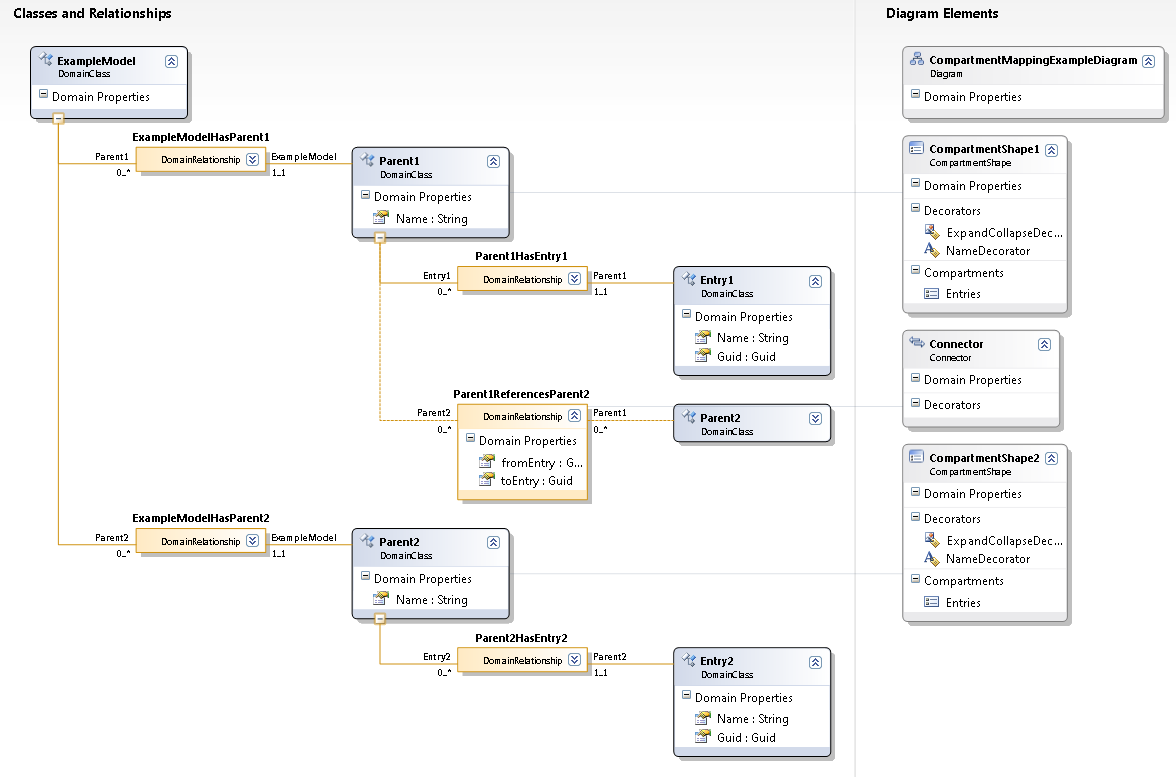
  2. I assume you have a DSL solution and at least two Domain Classes mapped to two compartment shapes and two more Domain Classes used as entries of the compartment shapes created. In my example these classes are called Parent1, Entry1, Parent2 and Entry2.
    The entries need a unique identifier. You could use a name property for this, but there will be some difficulties if the user creates two entries in one shape with the same name, so I will use a guid. (Don’t forget to create a new guid in the constructor or another proper place.)
  3. Create a Reference Relationship from Parent1 to Parent2. This will be automatically named Parent1ReferencesParent2. We will use this reference to present the relationship from one entry to another. I would like to create Reference Relationships from this relationship to the entries, but relationships of relationships are not supported. We have to store the guids of the entries in the relationship and add two Domain Properties for this purpose to it. I named them fromEntry and toEntry.
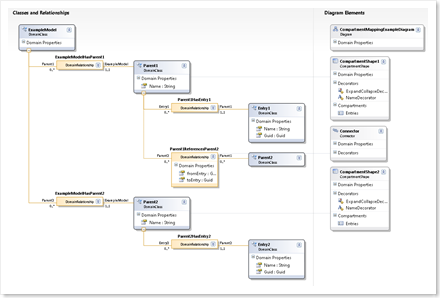
    DslDefinition 
  4. Set the Allows Duplicates property of the Parent1ReferencesParent2 relationship to true.
  5. Set the Is Custom property of the Connection Builder (Parent1ReferencesParent2Builder) in the DSL Explorer to true.
  6. Add a reference to JaDAL.dll to both the Dsl and DslPackage project.
  7. Add a new xml file (in my example CompartmentMappings.xml) to your solution and write the following code in it:
    <?xml version="1.0" encoding="utf-8" ?>
    <CompartmentMappings xmlns:xsi="http://www.w3.org/2001/XMLSchema-instance"
     xsi:noNamespaceSchemaLocation="CompartmentMappings.xsd"
     namespace="BenjaminSchroeter.CompartmentMapping">
    
      <Connection name="Parent1ReferencesParent2"
        allowSelfReference="true"
        suppressEntryDeletePropagation="false">
    
        <Source allowHead="false">
          <DomainClass name="Parent1" />
          <EntryDomainClass name="Entry1"/>
        </Source>
    
        <Target allowHead="true">
          <DomainClass name="Parent2"/>
          <EntryDomainClass name="Entry2"/>
        </Target>
    
        <Connector name="Connector"/>
      </Connection>
    
      <CompartmentShape name="CompartmentShape1"/>
      <CompartmentShape name="CompartmentShape2"/>
    </CompartmentMappings>

    (If you place the xsd file in the same directory you get IntelliSense and error checking for free.)

  8. Place the CompartmentMappings.tt file in the same directory, right-click on the xml file and choose Generate xGen Template. A CompartmentMappings_xGen.tt file will be created below the xml file and there you have to add the following lines:
    <#@ ParentFileInjector processor="TTxGenDirectiveProcessor"
        requires="fileName='CompartmentMappings.xml'" #>
    <#@ include file="CompartmentMappings.tt" #>

    (Be sure you use the right xml file name here.)

  9. Now you have to write some code by yourself. In the generated cs file (CompartmentMappings_xGen.cs) there will be a class named Parent1ReferencesParent2BuilderInstance with three missing methods you have to override. Create a partial class in a new file and implement these methods (see 10 and 11).

  10. Implement the CreateElementLink() method in this file. Here you have to add code to store the selected compartment entries for source and target in the properties of the relationship (see 3).
    protected override ElementLink CreateElementLink
        (Parent1 source,
         SelectedCompartmentPartType sourcePartType,
         Entry1 sourceEntry,
         Parent2 target,
         SelectedCompartmentPartType targetPartType,
         Entry2 targetEntry)
    {
        Parent1ReferencesParent2 result;
        result = new Parent1ReferencesParent2(source, target);
        if(sourcePartType== SelectedCompartmentPartType.Head)
            // use a empty guid for the Head
            result.fromEntry = Guid.Empty;
        else
            result.fromEntry = sourceEntry.Guid;
    
        if(targetPartType== SelectedCompartmentPartType.Head)
            // use a empty guid for the Head
            result.toEntry = Guid.Empty;
        else
            result.toEntry = targetEntry.Guid;
    
        return result;
    }

  11. In the CreateElementLink() method you have stored the source and target entry information somewhere; my library does not know about this location. So we need two additional methods to compare an entry with a relationship and answer the question "Is this entry the source of a given relationship?" and the same for the target. These code resists in the same file:
    public override bool IsEntryConnectionSource
        (Entry1 entry,
         Parent1ReferencesParent2 connection)
    {
        if (entry == null)
            return connection.fromEntry.Equals(Guid.Empty);
    
        return connection.fromEntry.Equals(entry.Guid);
    }
    
    public override bool IsEntryConnectionTarget
        (Entry2 entry,
         Parent1ReferencesParent2 connection)
    {
        if (entry == null)
            return connection.toEntry.Equals(Guid.Empty);
    
        return connection.toEntry.Equals(entry.Guid);
    }

    Always care for entry == null, this will be used to check whether the head of the shape is meant. Even if you do not allow the head to be source or target this method will be called with a null parameter from time to time.

  12. Create a partial class for your Domain Model (CompartmentMappingExampleDomainModel) and add the following methods.
    protected override Type[] GetCustomDomainModelTypes()
    {
      return CompartmentMappingUtil.AllCompartmentMappingRules(this);
    }

    (If you have already some custom rules, you can use an overloaded version of the AllCompartmentMappingRules() method.)

  13. In the DslPackage project create a partial class for the generated Command Set and add the following code:

    protected override IList<MenuCommand> GetMenuCommands()
    {
        return CompartmentMappingUtil.RemoveRerouteCommand
                                    (base.GetMenuCommands());
    }

That’s all. The mapping from compartment entry to compartment entry should be working after compiling the solution.

Advanced Features

As I mention above you can mix compartment and regular shapes. You only need to create a DSL with these shapes and configure the xml file another way. As you see, inside the <Connection> element there is no longer a reference to the diagram elements, only the domain classes are used here. Obviously if you use inheritance all your classes need to have the same base class for <DomainClass> itself and for <EntryDomainClass>. If the concrete class is mapped to a compartment shape, the compartment mappings, otherwise a mapping of regular shapes, will be used.

If one of source or target is always a regular shape, please use ModelElement for <EntryDomainClass>.

At the bottom of the xml file you have to list all shapes that play a role in your mapping. Use the xml elements <CompartmentShape> and <RegularShape> therefore.

Inside your Parent1ReferencesParent2BuilderInstance class you can override some more methods to allow or forbid the creation of connectors. I think the names and signatures speak for themselves:

  • bool CanAcceptAsCompartmentSource (SOURCE_ELEMENT candidate,   SelectedCompartmentPartType partType,   SOURCE_COMPARTMENT_ENTRY candidateEntry)
  • bool CanAcceptAsCompartmentTarget (TARGET_ELEMENT candidate,   SelectedCompartmentPartType partType,   TARGET_COMPARTMENT_ENTRY candidateEntry)
  • bool CanAcceptAsCompartmentSourceAndTarget  (SOURCE_ELEMENT sourceElement,   SelectedCompartmentPartType sourcePartType,   SOURCE_COMPARTMENT_ENTRY sourceEntry,   TARGET_ELEMENT targetElement,   SelectedCompartmentPartType targetPartType,   TARGET_COMPARTMENT_ENTRY targetEntry)

Advanced Sample

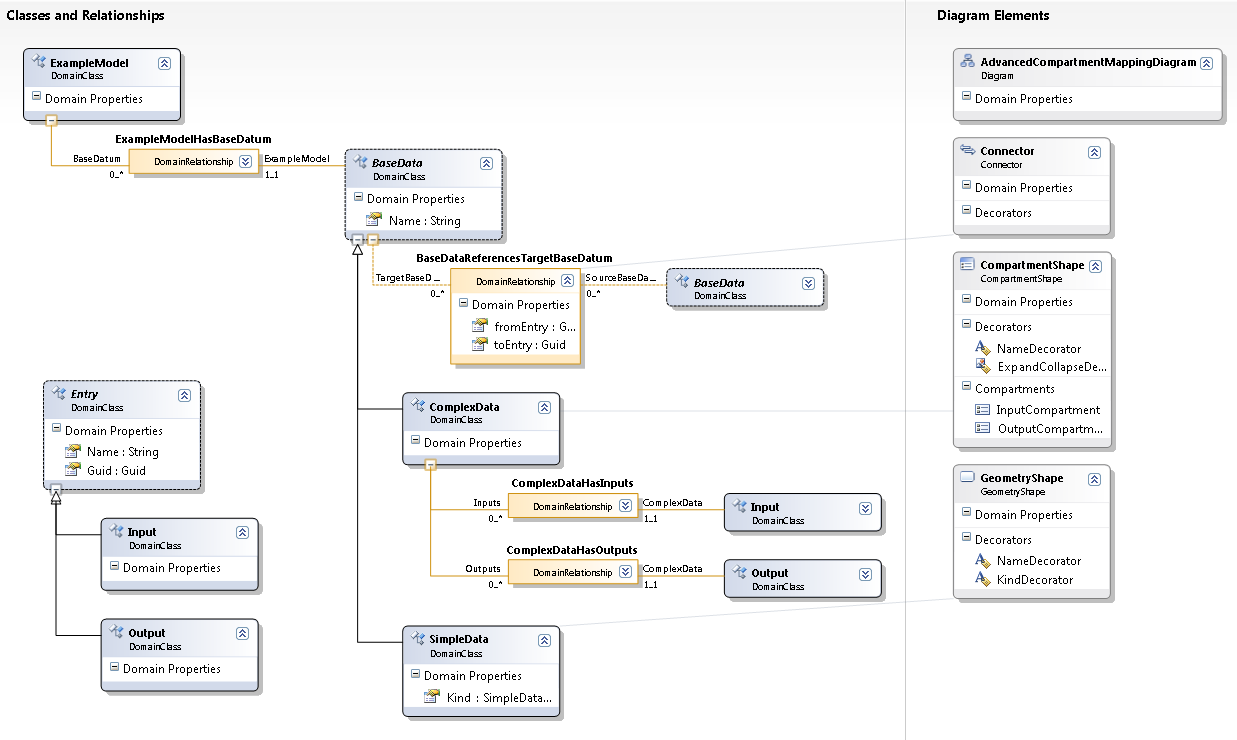
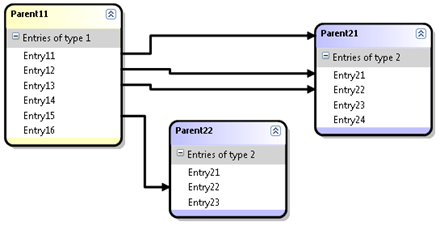
In addition to the sample above I build a second one. There I want to create mappings form some Inputs to some Outputs, where one of these Inputs or Outputs can be an entry of a compartment shape or a whole regular shape. This regular shape contains a property Kind that makes the shape to an Input or an Output (to show you the use of the CanAcceptAs... methods).
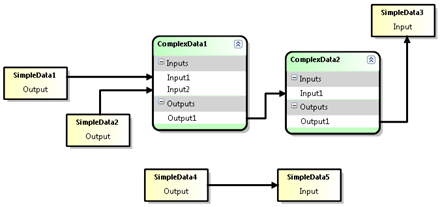
advancedsample

The DSL model looks like this:

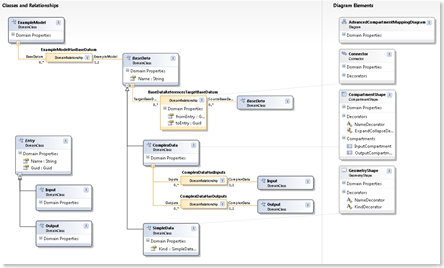
advanceddslmodel

The project with all sources is part of the samples in the JaDAL download.

Download

The compartment mapping library and both samples are part of JaDAL – Just another DSL-Tools Addon Library which you can download from CodePlex.
Changing the title of Compartments using code

Tags: , , ,
No Comments »

When using CompartmentShapes in your DSL you can define the text displayed in the head of each compartment in the DSL designer (there is a property Title for every compartment):

compartmentheadertext

Unfortunately I didn’t find any way to change this text from my source code or by binding it to some DomainProperty. I’m using an abstract base class with the embedded fields that are displayed in this compartment and I have some concrete classes inheriting from the base class. The shapes for all those concrete classes should look nearly the same; the only difference is the compartment header text. I think it is not a good idea to model a separate shape for every concrete class only for having different header texts.

model

After a little bit of research I found an extension point to achieve my aim. The CompartmentShape class contains a GetCompartmentDescriptions() method. To override this method you have to create the CompartmentShape as Double Derived and create a partial class.

I think you should take a look at the implementation of this method in the generated class. Indeed this method is defined in the CompartmentShape class, but it caches the value in a static field. So all shapes (within the same type) share the same CompartmentDescription. Now you can change it before returning it in this method. Just alter the text or do some other funny things like coloring or setting font types.

public override CompartmentDescription[] GetCompartmentDescriptions()
{
    CompartmentDescription[] descriptions;
    descriptions = base.GetCompartmentDescriptions();

    // I know there is only one CompartmentDescription
    // but maybe you should check it first
    CompartmentDescription desc = descriptions[0];

    if (this.ModelElement is ClassA)
        desc.Title = "Fields of A";

    if (this.ModelElement is ClassB)
    {
        desc.Title = "Fields of B";
        desc.TitleFontSettings = new FontSettings {Bold=true};
        desc.CompartmentFillColor = Color.LightBlue;
    }

    return descriptions;
}
shapes 

However there is a little drawback: This method is called only once (at least it seems so) when a shape is created (or the diagram is loaded). After that you cannot change the compartment description. For my problem it doesn’t make any difference. Maybe you can call some method to invalidate the shape and force it to reevaluate the method, but I’m not sure. If somebody knows some working solution for this, please leave a comment.

Preventing model elements from being deleted

Tags: , , , ,
3 Comments »

One would think, it is a simple feature in the DSL Tools framework to allow and forbid the deletion of model elements, but it isn’t.

There are a few posts in the DSL Forum and it seems there are even a few methods to forbid the deletion. But every single solution has its pros and cons and you have to write a little bit of code yourself. Just take a look at the following postings:

One solution is to throw an exception from within a DeletingRule, but I personally don’t like this. It means, the user is able to click on a delete menu item and then an error message box pops up. This is not a good user experience!

I think the best would be to hide the "delete" commands from the menus. If you disable the commands, the delete key isn’t working, too. But there are two places where the user can find such a "delete" command for the model elements: on the design surface of the DSL Editor and on the items of the DSL Explorer (and further more: the DSL Explorer has a "delete" and a "delete all" command on different tree nodes). You have to handle both cases.

I would just like to have somewhere a bool CanDelete() method that is called every time the menu is shown and asks my component whether to allow the deletion or not.

Now the good news: I added this Method and wrote a little piece of code for it!

First I created a very simple Interface

public interface IDynamicCanDelete
{
    bool CanDelete();
}

With this interface you can add the missing method to your shapes or model elements. I recommend to implement this method in the model elements since the model explorer knows nothing about your shapes and cannot call this method if implemented in the shape classes. You don’t need to implement this method for every model element, but only for those you want to forbid deletion. Just return false or implement some logic based on the model element state.

If this feature would be part of DSL Tools that is all you need to do. Though since it is only an addition to it, you have to connect some methods with my library:

  • In the DslPackage project add a partial class for your MyLanguageCommandSet and override the following method:
  • protected override void ProcessOnStatusDeleteCommand
                                       (MenuCommand command)
    {
        OnStatusDeleteCommandLogic.ForEditor(command,
                        this.CurrentDocumentSelection,
                        base.ProcessOnStatusDeleteCommand);
    }
  • In the same project add a partial class for your MyLanguageExplorer and override two methods:

    protected override void ProcessOnStatusDeleteCommand
                                        (MenuCommand cmd)
    {
        OnStatusDeleteCommandLogic.ForExplorerDelete(cmd,
                      this.SelectedElement,
                      base.ProcessOnStatusDeleteCommand);
    }
    
    protected override void ProcessOnStatusDeleteAllCommand
                                            (MenuCommand cmd)
    {
        OnStatusDeleteCommandLogic.ForExplorerDeleteAll(cmd,
                     this.ObjectModelBrowser.SelectedNode,
                     base.ProcessOnStatusDeleteAllCommand);
    }

That’s all, but what’s happening inside the OnStatusDeleteCommandLogic class? I’m looking for the selected elements (that are shapes in the editor or TreeNodes in the DSL Explorer) and check whether they implement the IDynamicCanDelete interface. If there is this interface I will call the CanDelete() method and if it returns false the delete menu command will be disabled and set to invisible.

For the Editor I will check the shape and the corresponding model element. If there are multiple elements selected only one must report false to disable the command.

The DSL Explorer provides a Delete All command on some nodes. For this command I will check all children but not the grandchildren.

For more details please take a look at the source code.

Download the files

Update

This code is now part of the JaDAL - Just another DSL-Tools Addon Library project. Please download the current version from that page. The download over at CodePlex contains the source code described here, an example DSL language and the library as a binary. Future enhancements of the code will be published there, too.

Additional bug fix for the explorer

DuncanP mentioned at the end of his article a small bug in the behavior of the model explorer. This bug can make the “Delete All” command visible when you don’t want it to be. He described an idea for a bug fix. I can find the same wrong behavior in the current release for Visual Studio 2008 and implemented a bug fix the way DuncanP pointed out:

Add the following code in the MyLanguageExplorer class

public override void AddCommandHandlers(IMenuCommandService menuCommandService)
{
    base.AddCommandHandlers(menuCommandService);

    MenuCommand deleteAllCommand =
        menuCommandService.FindCommand
            (CommonModelingCommands.ModelExplorerDeleteAll);
    this.ObjectModelBrowser.AfterSelect +=
        delegate
            {
                ProcessOnStatusDeleteAllCommand(deleteAllCommand);
            };
}

WP Theme & Icons by N.Design Studio
Entries RSS Comments RSS Log in